Help Center / Starboard / How to set up a starboard on Discord
How to set up a starboard on Discord
A starboard is a highlight reel. When a message gets enough of your chosen reaction, the bot reposts it to a board channel so the good stuff never gets buried.
Turn it on for your server
- Open the portalGo to mimbos.com and log in with Discord. Pick the server you want to set up. You need to be an admin or the owner.
- Find the Starboard cardOn the module dashboard, open Starboard and press Configure to start setup.
- Invite the bot and switch it onThe setup flow invites the Starboard bot with one click and turns the module on for this server.
- Choose the star emojiPick the reaction that counts toward the board. The classic star is the default, but any emoji works.
- Set the thresholdChoose how many of that reaction a message needs before it is reposted. Three to five is a good starting point.
- Pick the board channelChoose the channel where starred messages are reposted. Make sure the bot can send messages and embeds there.
- SaveThat is it. The bot now watches reactions and reposts anything that crosses your threshold.
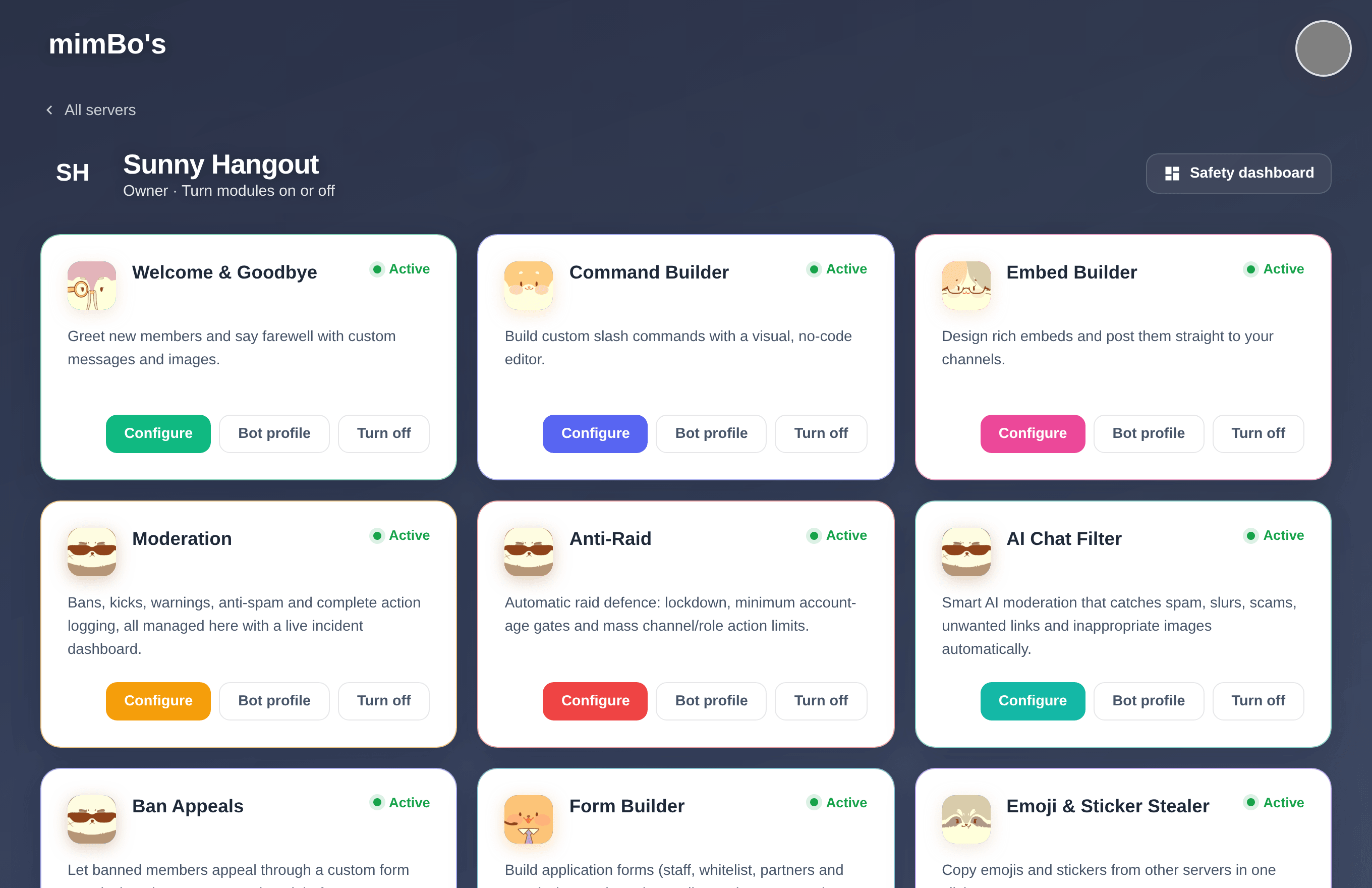
The module dashboard. Every bot has its own card with a Configure button that starts setup.
Tip. Match the threshold to your server size. A small server might use three stars, a busy one might use ten so only the real standouts make it.