Help Center / Moderation / How to set up a moderation bot on Discord
How to set up a moderation bot on Discord
Five minutes gets you a fully logging, anti-spam moderation setup.
Turn it on for your server
- Open the portalGo to mimbos.com and log in with Discord. Pick the server you want to set up. You need to be an admin or the owner.
- Find the Moderation cardOn the module dashboard every bot has its own card. Modules you have not activated yet show a Configure button that starts setup.
- Invite the bot and switch it onThe setup flow invites the right bot with one click and flips the module on. Each module is its own bot, so your slash menu only contains what you actually use.
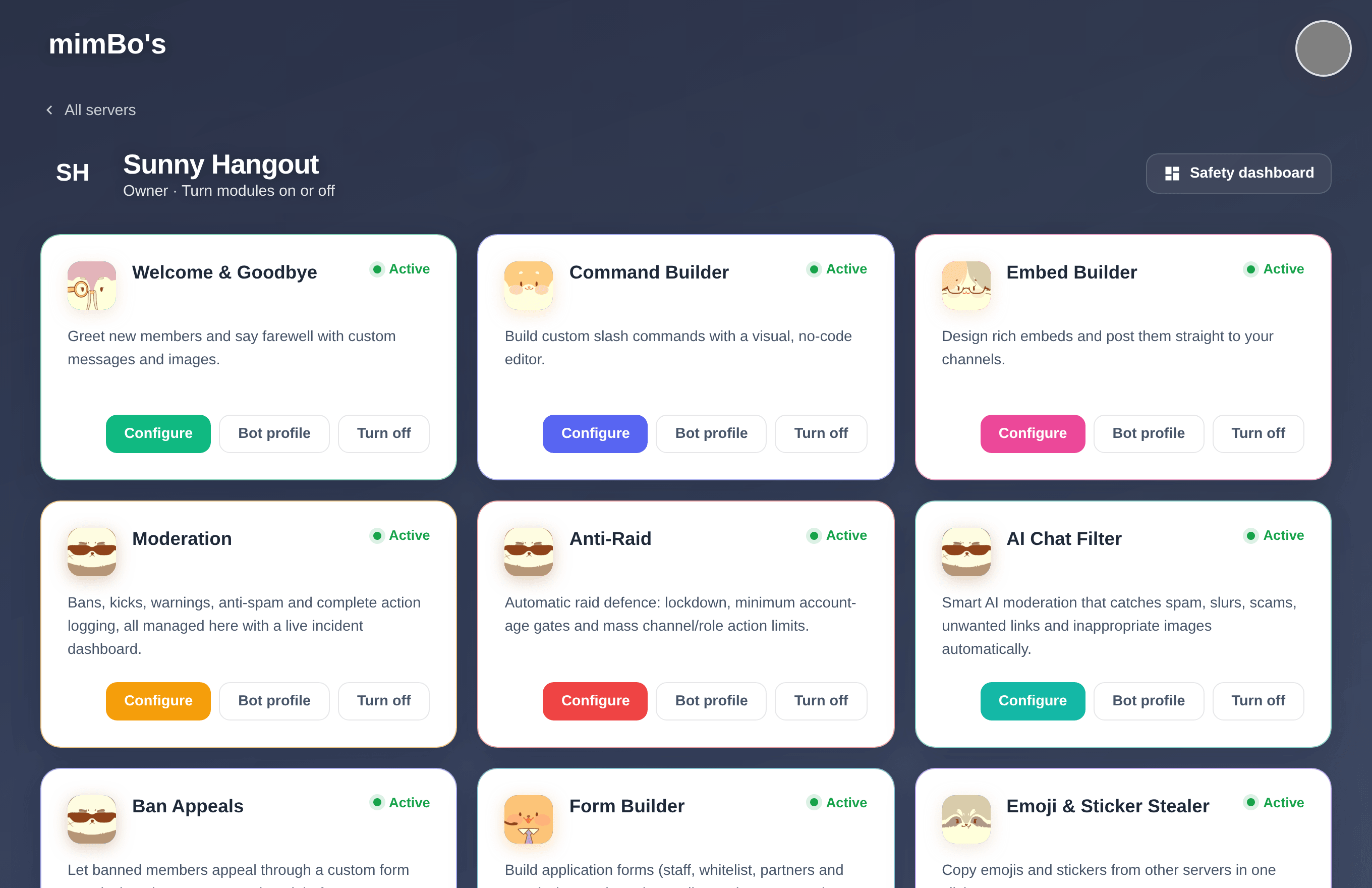
The module dashboard. Every bot has its own card with Configure, Bot profile and on/off controls.
After activating
Open the module from its card or from the sidebar rail on any portal page. Settings save to the cloud and the bot picks them up within seconds. No restarts and no config files.
Tip. If something seems off later, re-run the Configure flow. It re-checks the bot's permissions and presence in your server.
Configure the essentials
- Enable moderationFlip Moderation enabled at the top of the General tab in the portal. This is the master switch for the whole module.
- Pick a log channelChoose where bans, kicks, warnings and automatic actions get posted, or run
/log channelin Discord. A private#mod-logworks best. - Turn on anti-spamAnti-spam automatically catches floods and duplicate messages. It can also be toggled from Discord with
/antispam on. - SavePress Save changes. The bot applies the new settings within seconds.
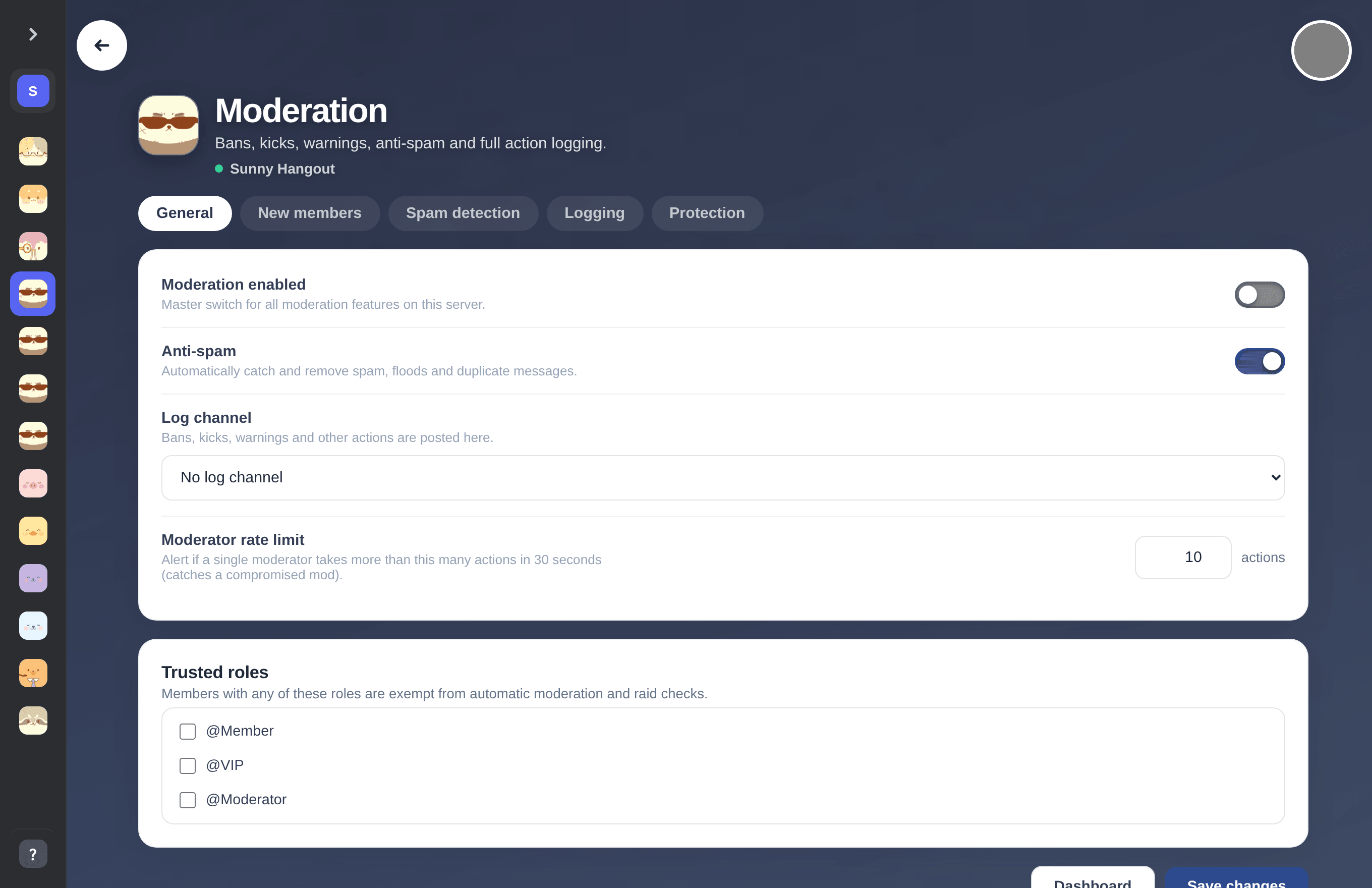
The Moderation settings page. Tabs at the top cover new members, spam detection, logging and protection.
Can't find what you're looking for?
Ask us anything in our Discord and we'll help you out.
Ask in our Discord