Help Center / Reaction Roles / How to set up reaction roles on Discord
How to set up reaction roles on Discord
One requirement matters here: the bot's role must sit above the roles it hands out.
Turn it on for your server
- Open the portalGo to mimbos.com and log in with Discord. Pick the server you want to set up. You need to be an admin or the owner.
- Find the Reaction Roles cardOn the module dashboard every bot has its own card. Modules you have not activated yet show a Configure button that starts setup.
- Invite the bot and switch it onThe setup flow invites the right bot with one click and flips the module on. Each module is its own bot, so your slash menu only contains what you actually use.
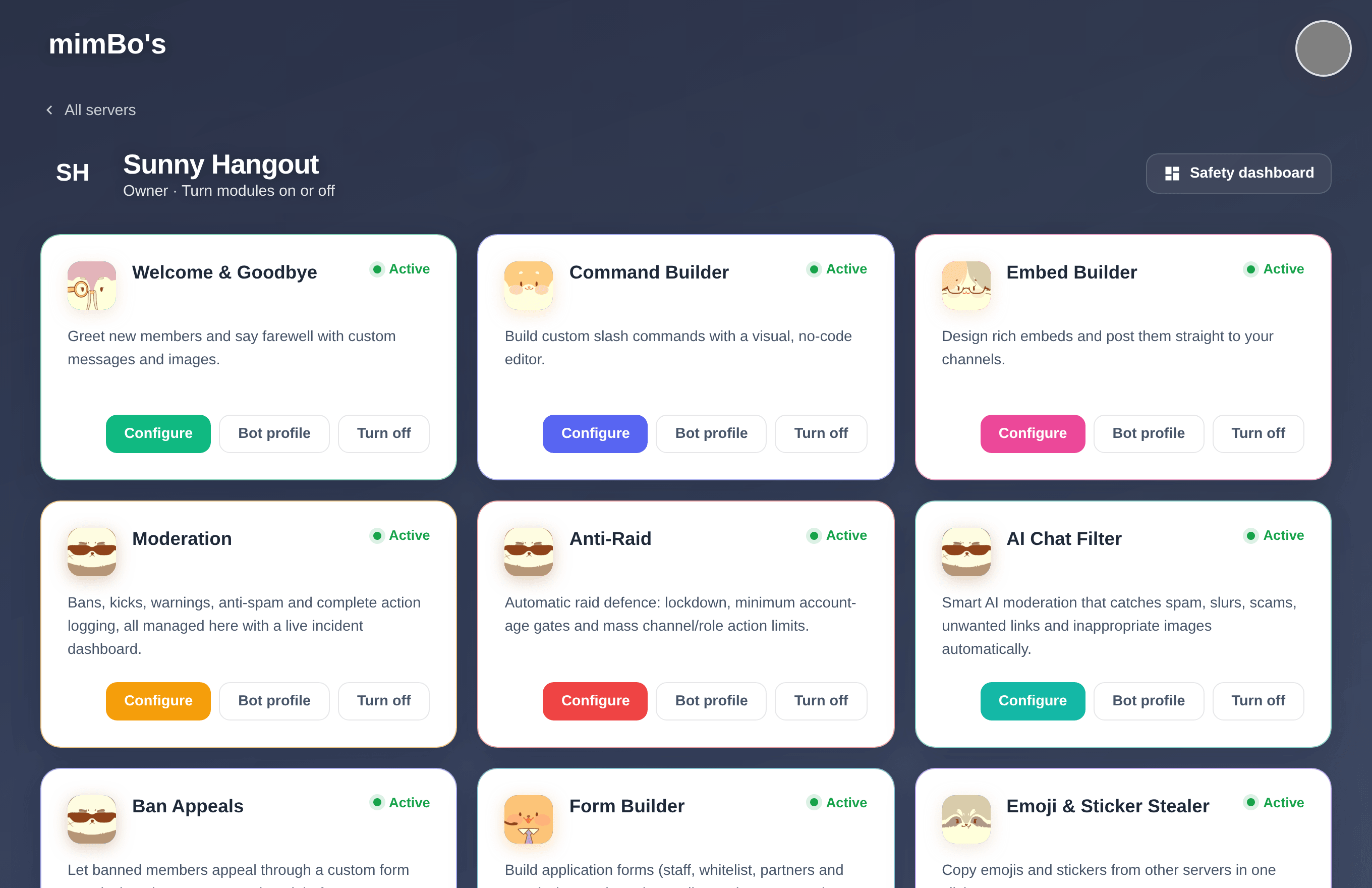
The module dashboard. Every bot has its own card with Configure, Bot profile and on/off controls.
After activating
Open the module from its card or from the sidebar rail on any portal page. Settings save to the cloud and the bot picks them up within seconds. No restarts and no config files.
Tip. If something seems off later, re-run the Configure flow. It re-checks the bot's permissions and presence in your server.
Check role positions
Discord only lets a bot grant roles below its own highest role. Drag the mimBo's role above your self-assign roles in Server Settings, then open the editor. If a click ever fails, the bot tells the member exactly that: it needs its role above the target and Manage Roles.
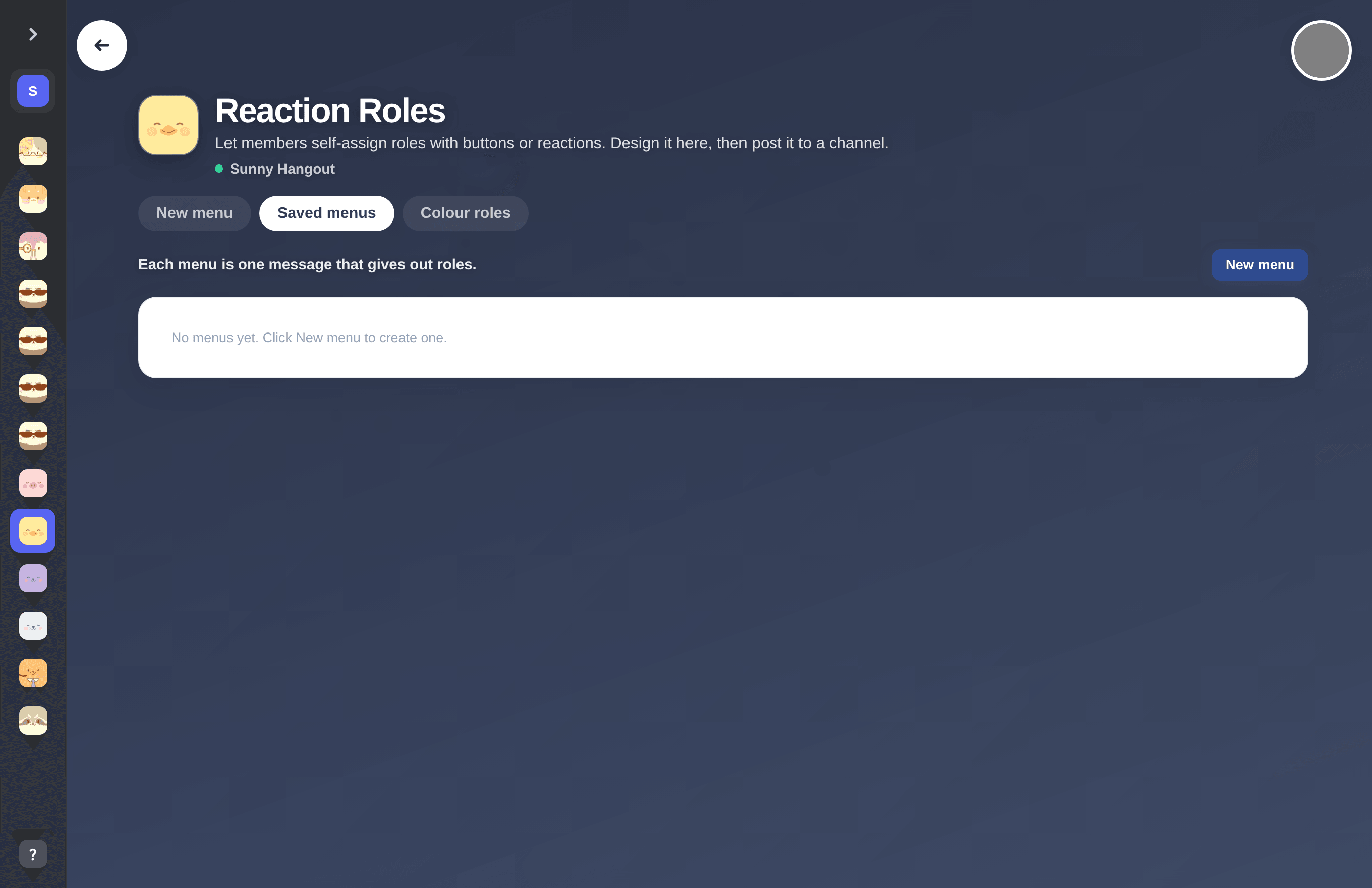
The Reaction Roles editor.
Can't find what you're looking for?
Ask us anything in our Discord and we'll help you out.
Ask in our Discord