Every Welcome & Goodbye setting explained
A full reference for the Welcome & Goodbye editor. Every section is shown exactly as it appears in the portal, with a plain-English explanation of what each option does. The Goodbye tab has the same settings as Welcome, so anything here applies to both.
Basic settings
The essentials: whether greetings are on, where they go, and what kind of message the bot posts.
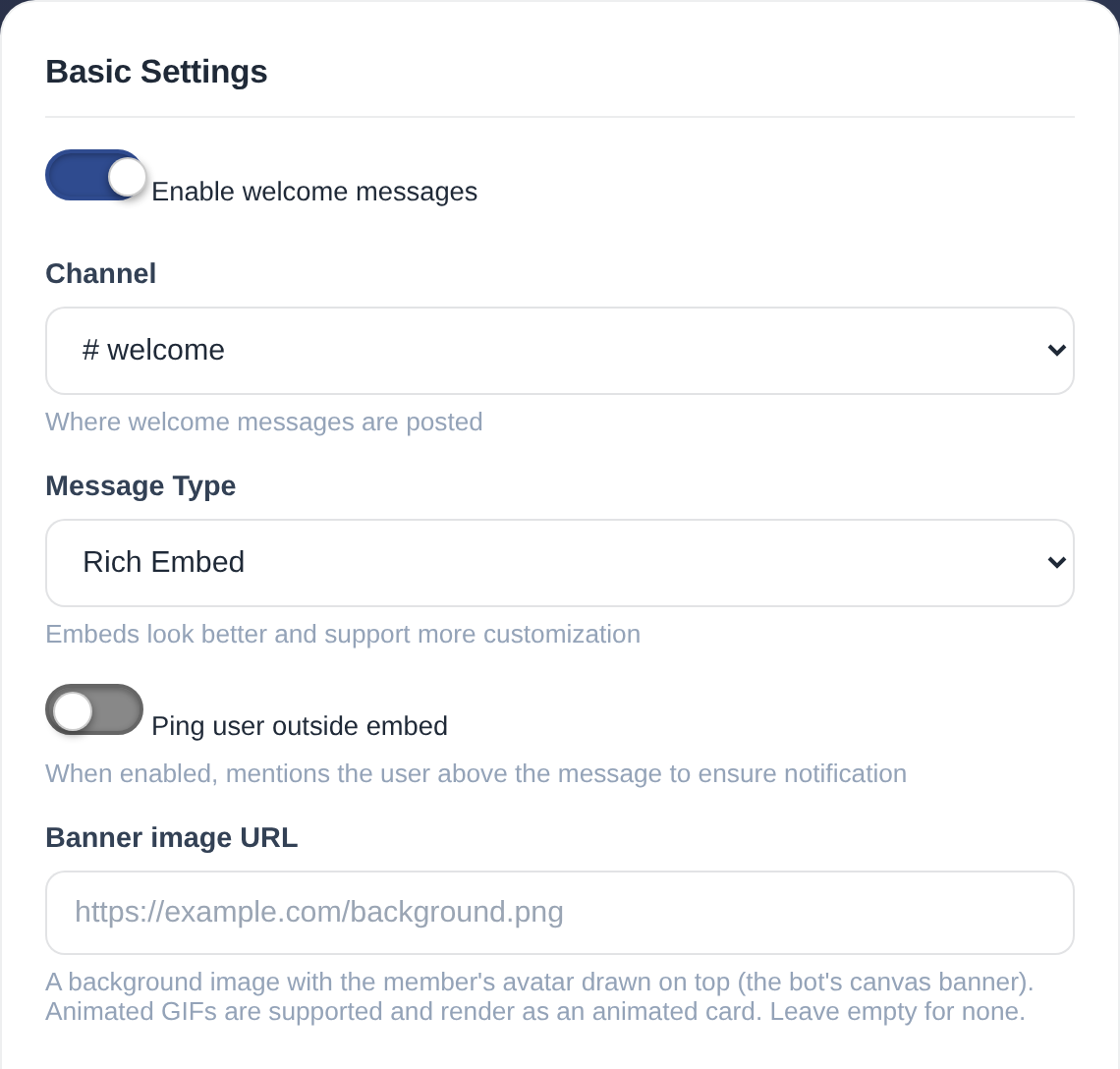
| Setting | What it does |
|---|---|
| Enable welcome messages | The master on/off switch for greetings. Turn it off to pause welcomes without losing any of your setup. |
| Channel | Where welcome messages are posted, usually a dedicated #welcome channel. The bot needs permission to send messages there. |
| Message Type | Choose Rich Embed (a styled card with a title, colour and thumbnail) or a plain Text message. Embeds look nicer and unlock the Embed section below. |
| Ping user outside embed | When on, the bot @mentions the new member on a line above the message so they get a real notification. Mentions placed inside an embed do not ping, which is why this exists. |
| Banner image URL | A background image with the member's avatar drawn on top (the bot's canvas banner). Animated GIFs are supported and render as an animated card. Leave empty for none. |
Embed message
Shown when Message Type is set to Rich Embed. This is the styled card new members see. Every text field supports placeholders (see the bottom of this page).
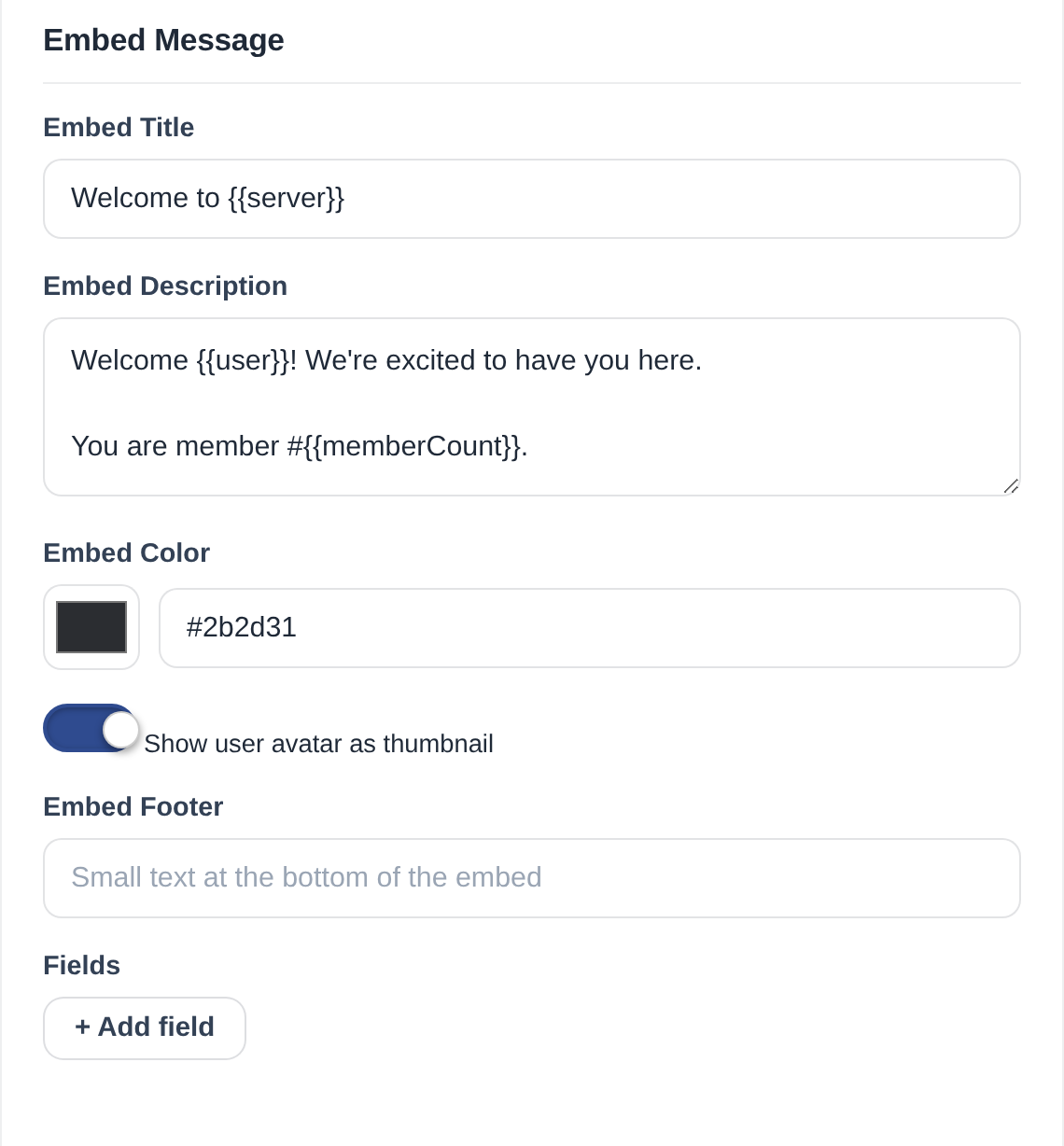
| Setting | What it does |
|---|---|
| Embed Title | The bold heading at the top of the card, e.g. Welcome to {{server}}. |
| Embed Description | The main body text. Supports placeholders like {{user}} and {{memberCount}}, and line breaks for multiple lines. |
| Embed Color | The colour of the bar down the left edge of the embed. Pick a hex colour to match your server's brand. |
| Show user avatar as thumbnail | When on, the new member's profile picture appears in the top-right corner of the embed. |
| Embed Footer | Small text at the very bottom of the embed, handy for a tagline or a "read the rules" reminder. |
| Fields | Add extra labelled blocks (a name and a value) to the embed, for example "Rules" pointing to #rules. Click Add field for each one. |
Delivery
Fine control over when the message is sent and how the bot reacts to it.
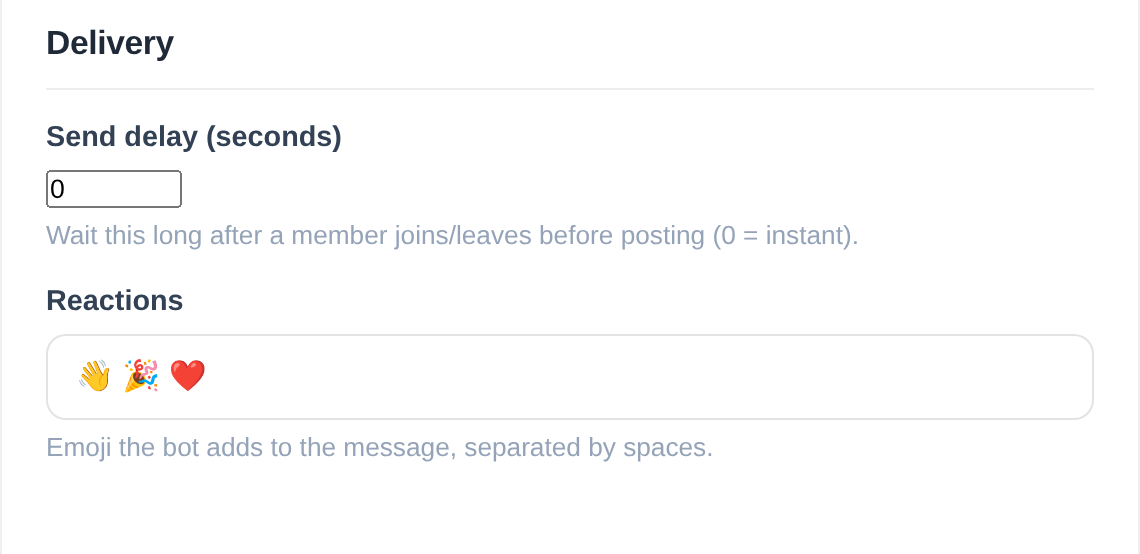
| Setting | What it does |
|---|---|
| Send delay (seconds) | How long the bot waits after a member joins (or leaves) before posting. 0 means instant. A short delay is useful if you also run membership screening. |
| Reactions | Emoji the bot automatically adds to the welcome message, separated by spaces. A nice way to invite the community to react and say hi. |
Custom background image
Opens the image editor for a full welcome card: your own background with the member's avatar and text drawn on top.
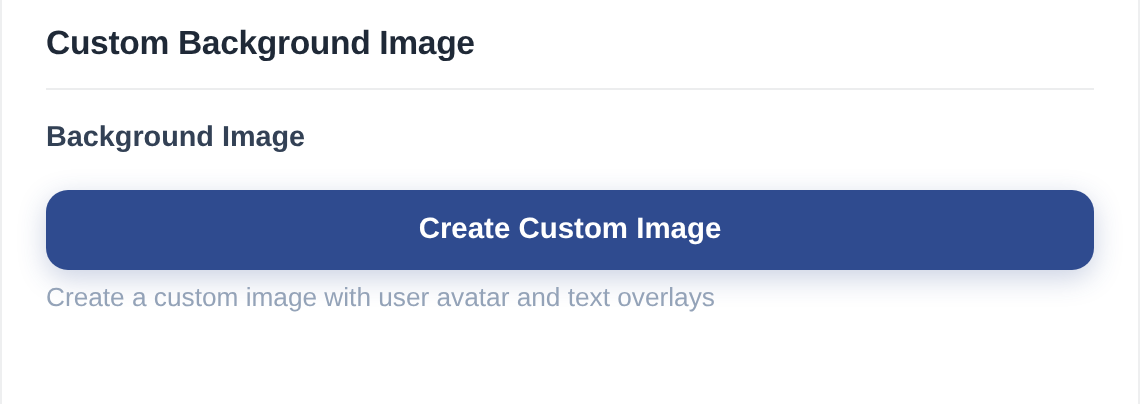
| Setting | What it does |
|---|---|
| Create Custom Image | Opens the image editor where you set a background, position the member's avatar, and add text overlays (font, size and colour). This produces the canvas banner that shows above the message. Animated GIF backgrounds render as an animated card. |
Server settings
These apply to the whole server (both welcome and goodbye), not just the current tab.
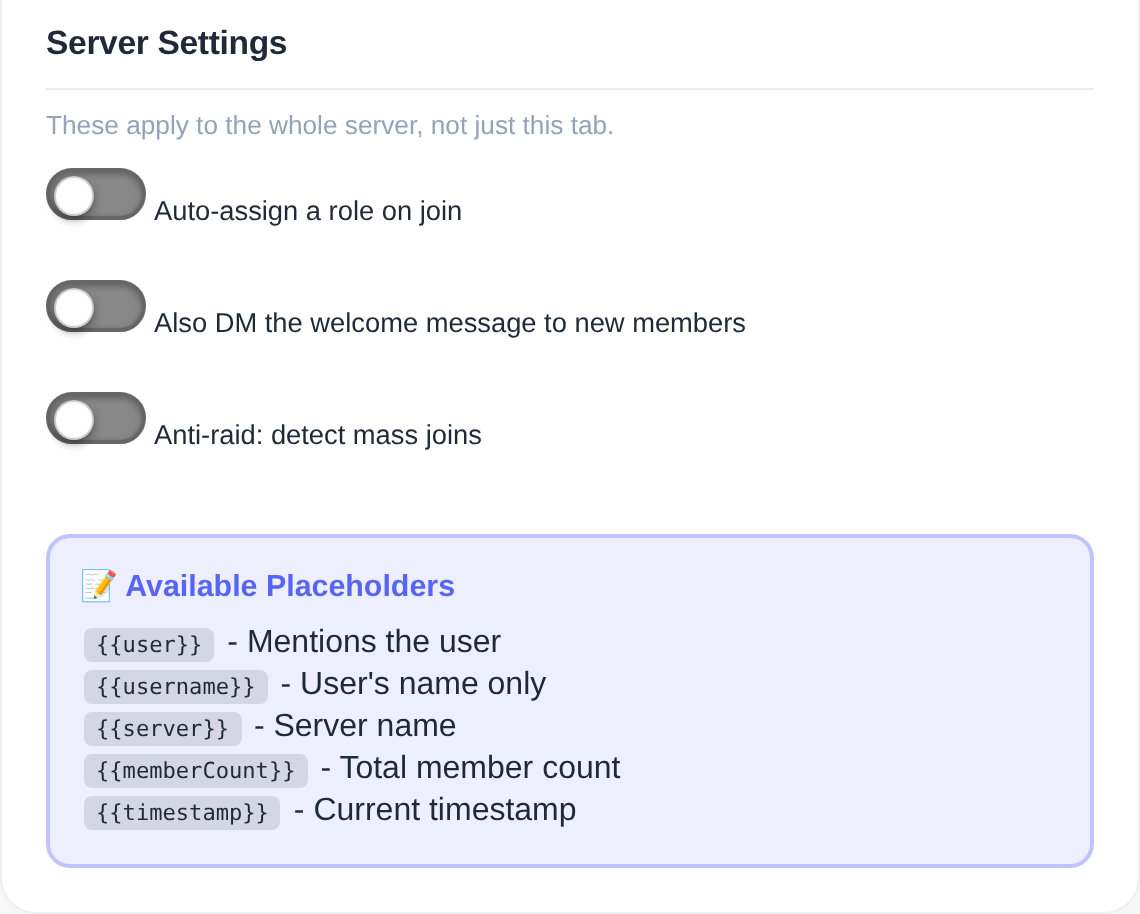
| Setting | What it does |
|---|---|
| Auto-assign a role on join | Automatically gives every new member a role (for example @Member). Handy for unlocking channels or setting a base role the moment someone joins. |
| Also DM the welcome message to new members | Sends the welcome as a direct message as well, so new members see it even if they never open the channel. |
| Anti-raid: detect mass joins | Watches for sudden floods of joins and holds back welcomes during a spike, so a raid can't spam your channel with greetings. |
Placeholders
Drop these into any text field (title, description, footer) and the bot fills them in per member when the message is sent.
| Placeholder | Becomes |
|---|---|
{{user}} | A mention of the new member (pings them). |
{{username}} | The member's name only, with no ping. |
{{server}} | Your server's name. |
{{memberCount}} | The total member count, e.g. "member #1,234". |
{{timestamp}} | The current date and time. |
/test type: Welcome Message in Discord to send yourself a preview without waiting for a real join. You can even test as a specific member.