Help Center / Welcome & Goodbye / How to set up welcome messages on Discord
How to set up welcome messages on Discord
Pick a channel, write a line, and every new member gets a proper hello.
Turn it on for your server
- Open the portalGo to mimbos.com and log in with Discord. Pick the server you want to set up. You need to be an admin or the owner.
- Find the Welcome & Goodbye cardOn the module dashboard every bot has its own card. Modules you have not activated yet show a Configure button that starts setup.
- Invite the bot and switch it onThe setup flow invites the right bot with one click and flips the module on. Each module is its own bot, so your slash menu only contains what you actually use.
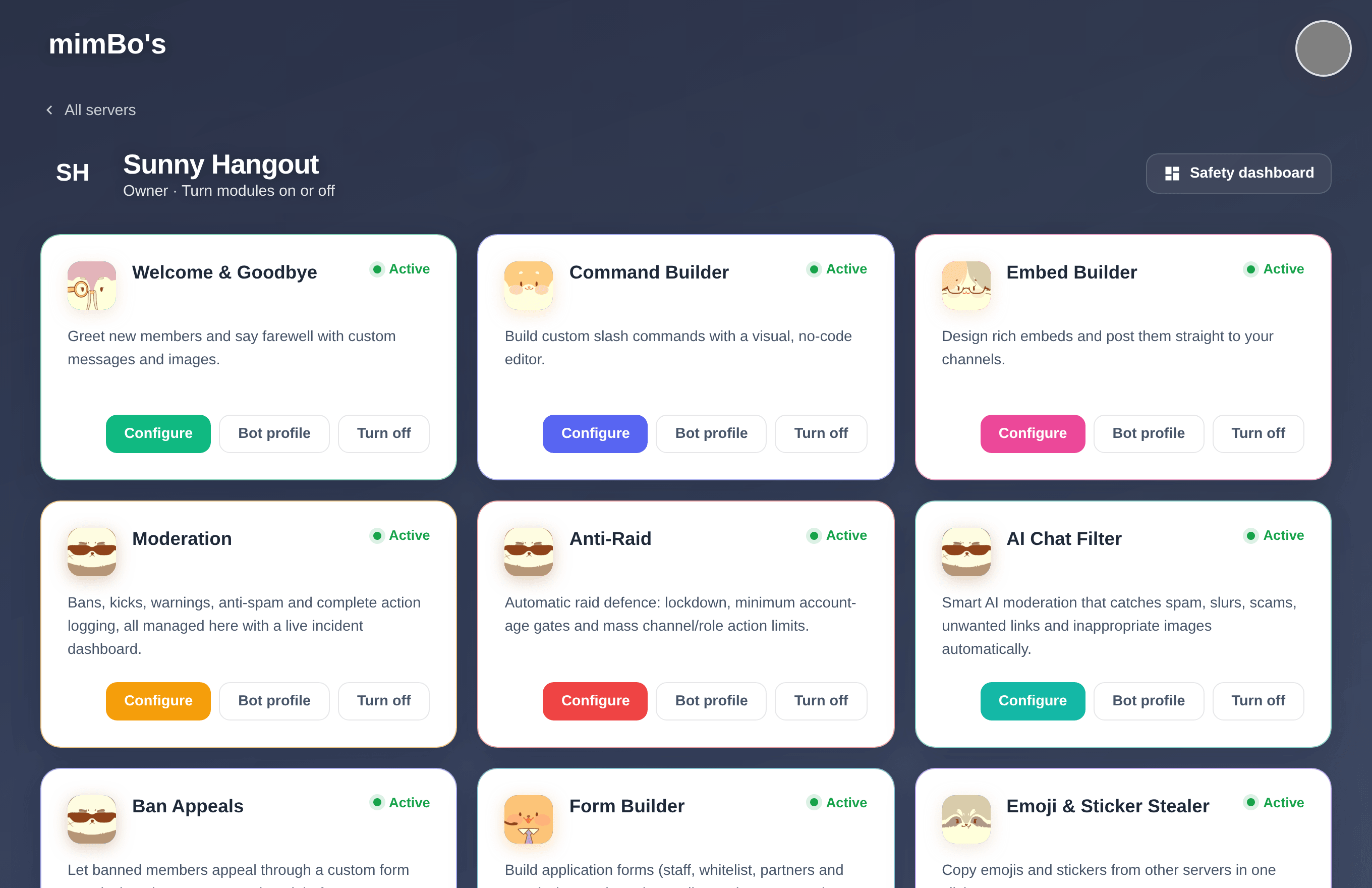
The module dashboard. Every bot has its own card with Configure, Bot profile and on/off controls.
After activating
Open the module from its card or from the sidebar rail on any portal page. Settings save to the cloud and the bot picks them up within seconds. No restarts and no config files.
Tip. If something seems off later, re-run the Configure flow. It re-checks the bot's permissions and presence in your server.
Pick the channels and test
- Welcome channelChoose where welcomes are posted, usually a dedicated
#welcomechannel. - Goodbye channelOptionally pick a channel and message for when members leave.
- Test itRun
/testin Discord to send a preview welcome or farewell without waiting for a real join. You can even test as a specific user.
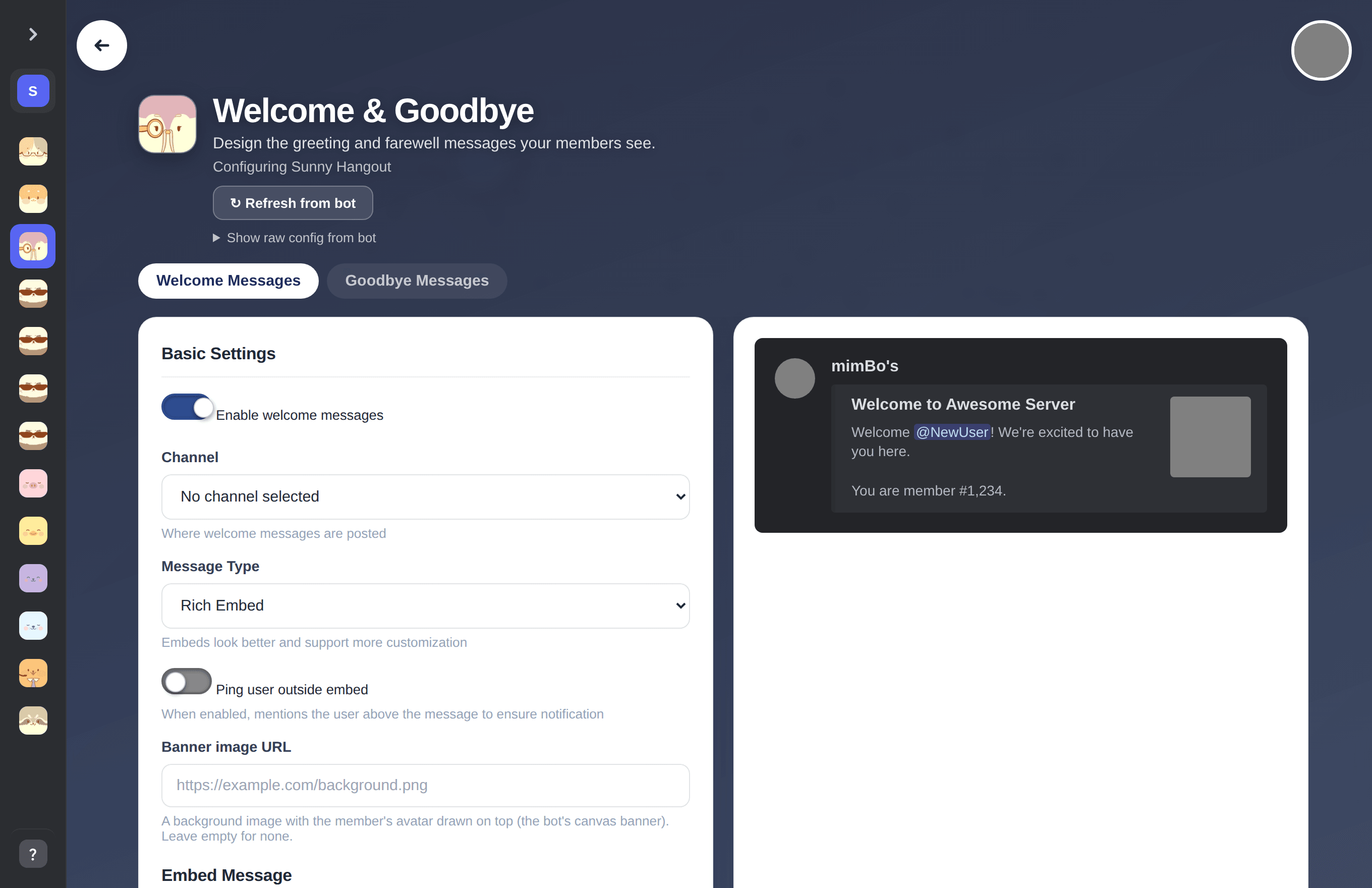
The Welcome & Goodbye settings with live preview.
| Command | What it does |
|---|---|
| /test type user | Send a test welcome or farewell, optionally as another user. |
| /config section | View the current configuration from Discord. |
| /stats | Join and leave statistics for the server. |
Can't find what you're looking for?
Ask us anything in our Discord and we'll help you out.
Ask in our Discord