Help Center / Tickets / How to work tickets: assign, prioritise, close and transcripts
How to work tickets: assign, prioritise, close and transcripts
Tickets open as numbered private channels like ticket-0042, with everything staff need one command away.
Inside a ticket
The first message shows the ticket number, category, priority and the member's answers.
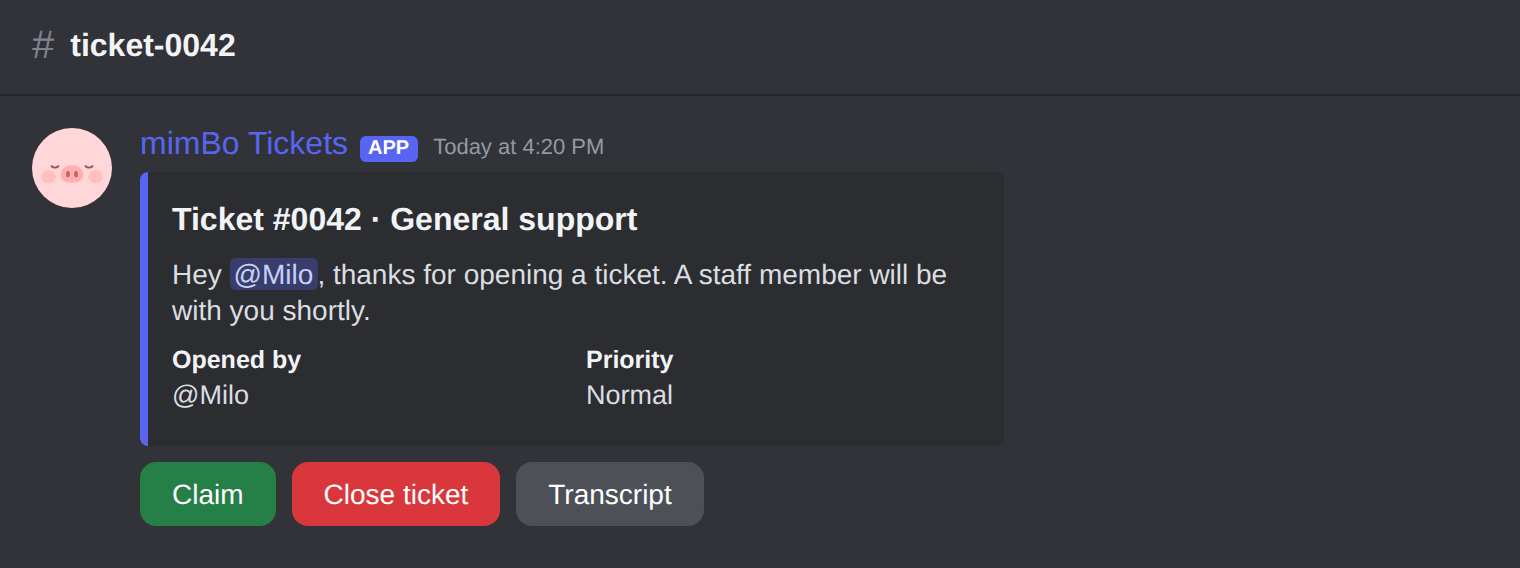
A fresh ticket: Close Ticket and Priority buttons under the welcome embed.
| Command | What it does |
|---|---|
| /assign agent | Assign the ticket to a staff member. |
| /priority level | Set priority: Low, Normal, High or Urgent. The Priority button opens the same picker. |
| /note user content | Attach an internal note to the customer's profile. |
| /customer user | See a member's ticket history and notes. |
| /close reason | Close the ticket, with an optional reason. |
Transcripts
- Set a transcript channelIn the global settings, choose where closed-ticket transcripts are archived.
- Close the ticketOn close, the bot generates the transcript automatically.
- Get two filesA formatted HTML file you open in the browser and a plain text version, posted with a summary embed.
Tip. An AI assistant can suggest first responses based on the member's answers. Toggle it per panel in the dashboard.
Previous: How to create a Discord ticket panel with categories Next: Every ticket command for staff and admins
Can't find what you're looking for?
Ask us anything in our Discord and we'll help you out.
Ask in our Discord